
The use of ProctorTrack is not preferred and is made available only as a last resort to ensure students are still able to complete their coursework.
If this is your first time using ProctorTrack, please refer to this article for setup instructions.
-
If you haven't already, fill out the Proctored Exam Request form.
- Note: The email address you enter on this form is the address your ProctorTrack account will use. It does not need to be the same address you use to access Pathway but CBTS is not able to later change which address you use to access ProctorTrack without creating a new account for you.
-
If you are approved to use ProctorTrack, CBTS will assign the requested class to you. We will then send you an email stating your proctoring is ready.
- If you have set up ProctorTrack before, you will receive one registration email from ProctorTrack for each assessment in your class. You may simply delete these registration emails.
- If you HAVE NOT used ProctorTrack before, please refer to this article for setup instructions.
-
Sign in to ProctorTrack at https://testing.verificient.com/login.
- Note: CBTS is located in the USA. If you are located in the EU, Canada, or Australia, ProctorTrack will suggest using a different link. Use the link we have provided above. You will not be able to take quizzes/tests using other links.
-
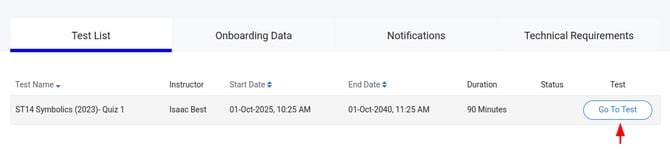
Once signed in, locate your test and select the "Go To Test" button.
-
Click the "Open ProctorTrack" button. ProctorTrack will open.
- You may need to allow the page to open the ProctorTrack application. If so, simply click the "Open" button.

- You may need to allow the page to open the ProctorTrack application. If so, simply click the "Open" button.
-
Once in the ProctorTrack browser, you will be asked to login to the ProctorTrack website again. Do so and repeat steps 4 & 5 above.
-
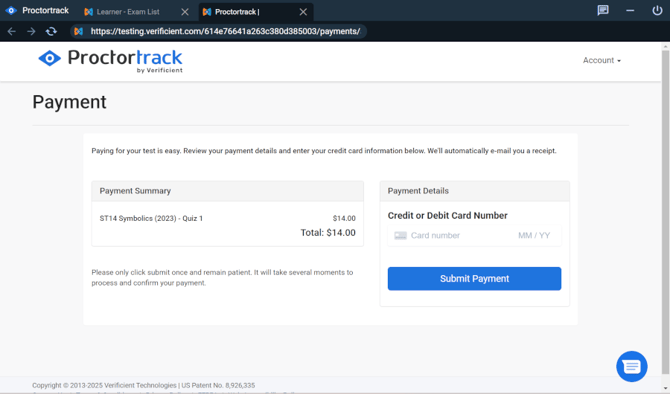
Enter your payment details and submit the payment.
-
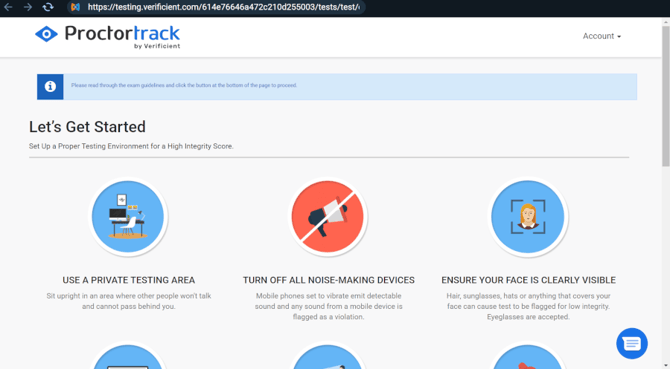
You will be shown a "Let's Get Started" page. Read through the guidelines and make sure your testing area conforms to the requirements. Then select "Next" at the bottom of the page.
-
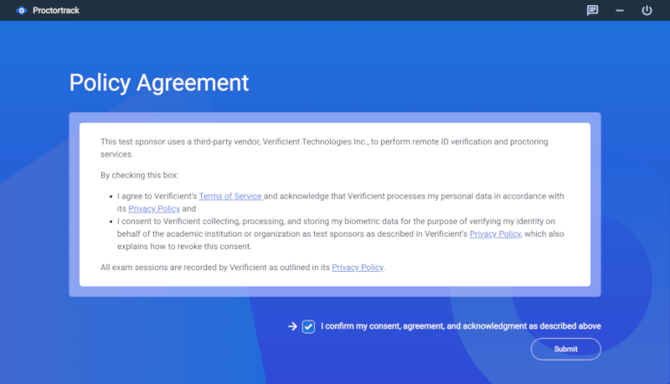
After a short delay, you will be presented with the ProctorTrack Policy Agreement page. Select the box to indicate your consent to the policies and hit "Submit."
- Note: ProctorTrack operates under its own privacy and data-handling policies, which may include collecting video, audio, and biometric data for exam monitoring. CBTS has no control over or access to this data.
- Note: ProctorTrack operates under its own privacy and data-handling policies, which may include collecting video, audio, and biometric data for exam monitoring. CBTS has no control over or access to this data.
-
A system check will begin; wait for this to finish (it will take about a minute). Correct any problems that may be found.
- If processes from Chrome or Edge are running in the background, ProctorTrack may not allow you to continue. Either force Edge/Chrome to close or turn of the "run in the background" option in the Chrome/Edge settings. You may also need to turn off Startup Boost in Edge.
-
Next, you will be presented with a Face Scan. Follow the instructions shown. Submit your scan when ready.
-
The exam-specific guidelines will be shown. Click "Start Proctoring" once you have made sure you are in compliance with the guidelines.
-
You will be taken to Pathway. Click "Copy Code/Password" to dismiss the popup. Sign in using your credentials. You should be taken to your test/quiz. (If not, navigate to your class and the quiz/test you need to take.) Paste the code from ProctorTrack into the password box and click "Access".
- If the code does not paste/is not in your clipboard, select the key icon in the video window and select "Copy Exam Password" to copy the code again.
-
Take the quiz/test.
-
Once done, make sure to submit the quiz/test in Pathway! Only then click "End" in the top right to end the proctored session.
-
Wait for the ProctorTrack browser to finish uploading the session. Then you may close the ProctorTrack browser by clicking the power button on the top right.