
The use of ProctorTrack is not preferred and is made available only as a last resort to ensure students are still able to complete their coursework.
- Fill out the Proctored Exam Request form.
- Note: The email address you enter on this form is the address your ProctorTrack account will use. It does not need to be the same address you use to access Pathway but CBTS is not able to later change which address you use to access ProctorTrack without creating a new account for you.
- If you are approved to use ProctorTrack, CBTS will assign the requested class to you. We will then send you an email stating your proctoring is ready.
- If you have used ProctorTrack before, you will receive one registration email from ProctorTrack for each assessment in your class. You may simply delete these registration emails.
- If you HAVE NOT used ProctorTrack before, wait until you have received the notification email from CBTS. Then, navigate to https://testing.verificient.com/account/password/reset and request password reset. Click the reset link in the email ProctorTrack sends you and enter a password for your ProctorTrack account.
- Sign in to ProctorTrack at https://testing.verificient.com/login.
- Note: CBTS is located in the USA. If you are located in the EU, Canada, or Australia, ProctorTrack will suggest using a different link. Use the link we have provided above. You will not be able to take quizzes/tests using other links.
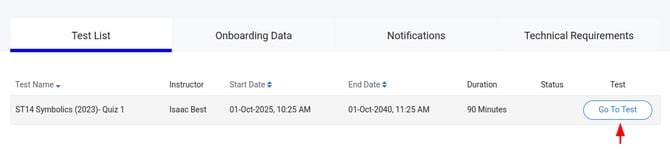
- Once signed in, locate your test and select the "Go To Test" button.
- Select the "Download ProctorTrack" button. Once the file is downloaded, install it.
- You are now prepared to start your first proctored test/quiz. See this article for detailed instructions on taking a test.