
This guide assumes you are using a laptop/desktop.
-
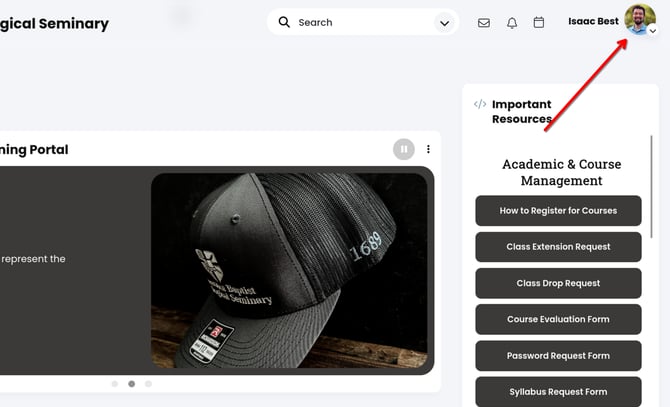
From the Pathway homepage, click your username/profile picture in the upper right. Do not click the little arrow. (Or, click the "Edit Pathway Profile" link in the Hub and skip to step #4.)
-
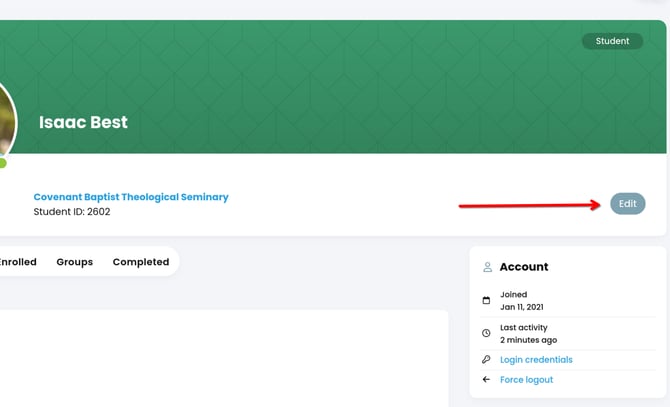
You will be taken to your profile page. Click the "Edit" button on the right.
-
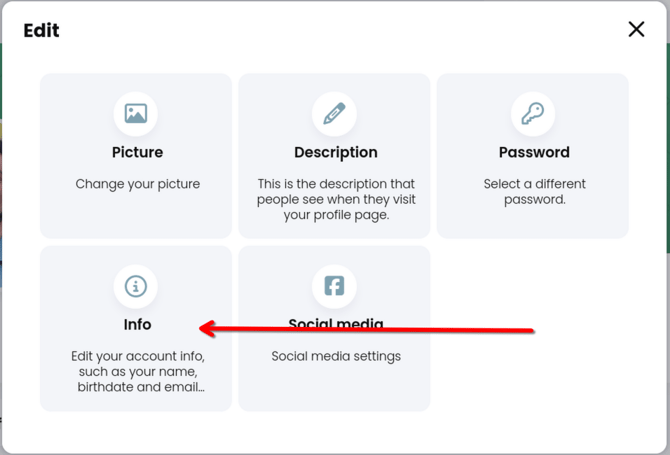
Select "Info" in the pop-up.
-
Scroll to the bottom of the page to the section titled "Proctor Information". Enter your proctor's information in the Proctor 1 boxes. If you have a backup proctor (or two) enter that information in the other boxes.
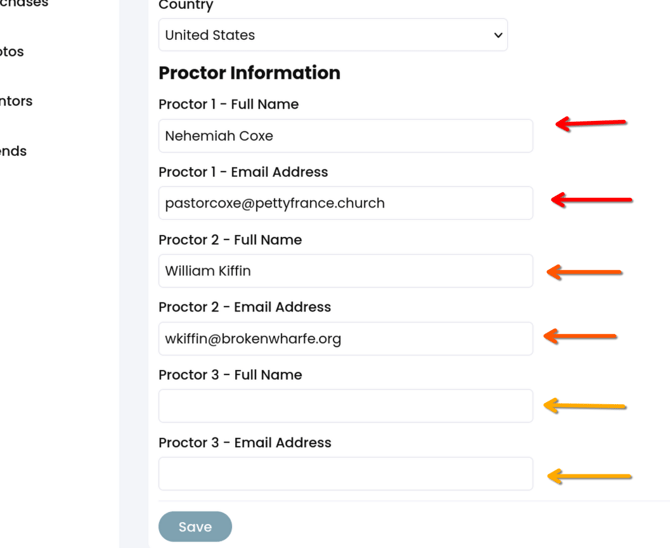
- Click Save. Your proctors are now registered in Pathway. Please note that you will not receive a confirmation or approval notification.
Note: Make sure each proctor's email address is entered correctly or the password emails will not be delivered.